Remote access
Copyright © Quectel Wireless Solutions Co., Ltd. 2026. All rights reserved.
SSH remote terminal
The Linux system has built-in ssh-server service and can be connected directly.
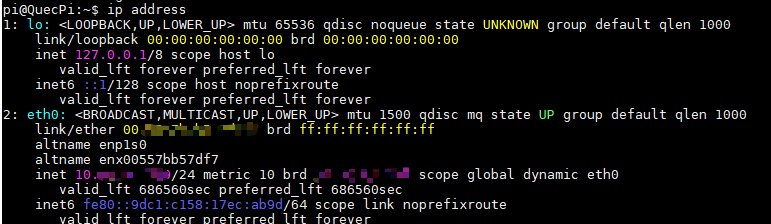
Get IP address of Quectel Pi H1 smart single-board computer
Enter the ip address command in the debug UART terminal to view the IP address of Quectel Pi H1.
Configure SSH login
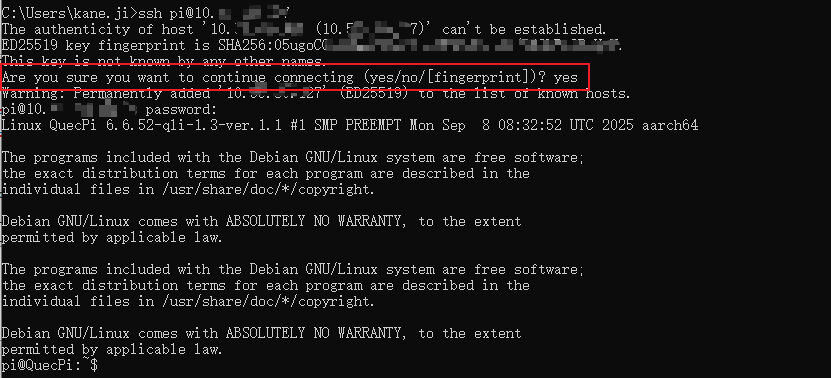
Enter the following command in the Windows console. You need to enter “yes” to confirm the connection during the connection process.
ssh <username>@<ip-address># Examplessh pi@192.168.2.xxx
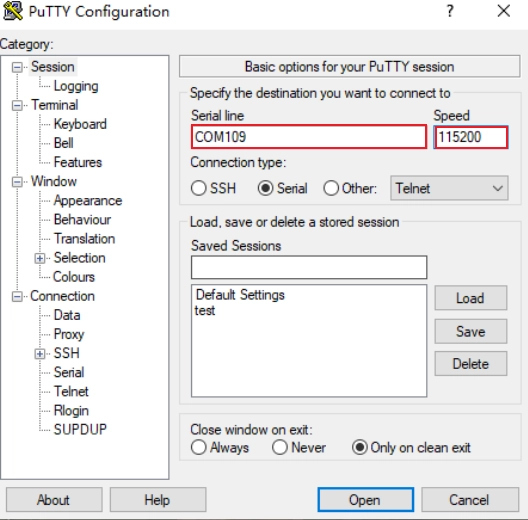
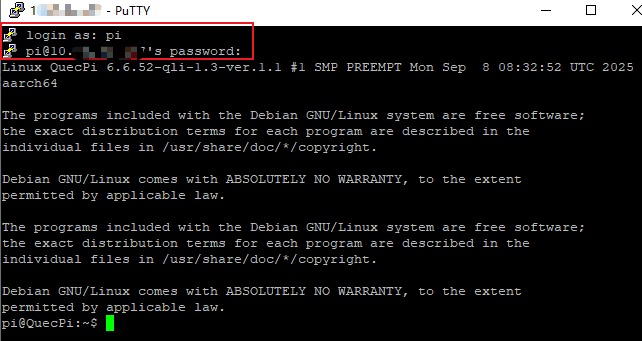
You can also use the PuTTY terminal software tool to enter the IP address of Quectel Pi H1 to log in.
Enter the username and password of Quectel Pi H1. The default user is pi.
VNC remote desktop
The Linux system already has built-in tigervnc server service, which can be used directly.
Set VNC password
Enter the following command on the device terminal:
#Follow the prompts to enter the password twice in a rowmkdir ~/.vnc
vncpasswd -f > ~/.vnc/passwd
Create a startup script
Enter the following command on the device terminal:
# Create the scriptcat > start_xvnc.sh << 'EOF'
#!/bin/bash
echo "Cleaning up previous sessions..."
pkill -9 -f xfce
pkill -9 -f xfwm4
pkill -9 -f Xvnc
sleep 2

echo "Starting VNC server..."
Xvnc :1 -geometry 1280x720 -depth 24 -rfbport 5901 -rfbauth ~/.vnc/passwd &
sleep 5

export DISPLAY=:1

echo "Starting window manager (without compositing)..."
xfwm4 --display=:1 --compositor=off &
WM_PID=$!
sleep 3

if ps -p $WM_PID > /dev/null;  then
echo "Window manager started successfully (PID: $WM_PID)"
else
echo "Failed to start window manager"
exit 1
fi

echo "Starting XFCE4 session..."
startxfce4 &
sleep 5

echo "Desktop components status:"
ps aux | grep -E "(xfce|xfwm|xfsettings|xfdesktop|xfce4-panel)" | grep -v grep
EOF# Modify permissionschmod +x start_xvnc.sh
Manage commands
# Start VNC
./media/start_xvnc.sh

# Stop VNCpkill -9 -f xfce
pkill -9 -f xfwm4
pkill -9 -f Xvnc

# View statusps aux | grep vnc
netstat -tln | grep 59
Test connection
# Connect from another computer, and enter the password as prompted to log in# For example, vncviewer 10.66.82. *: 5901
Vncviewer<Device IP Address>: 5901
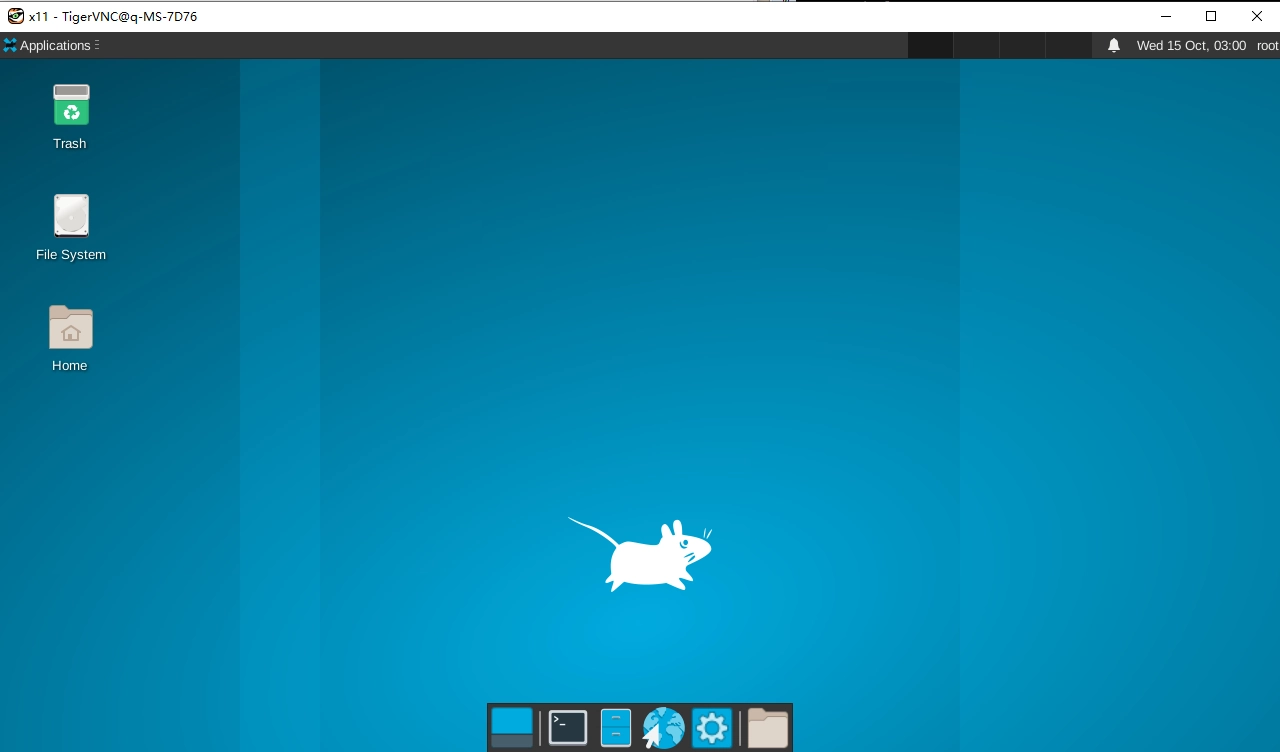
After successful connection, you will see the following screen.